


Introduction
In the world of Business Process Model and Notation (BPMN), processes are not just static lines of tasks; they are dynamic flows driven by specific occurrences. At the heart of this dynamism are Events. As defined in BPMN standards, an Event is something that “happens” during the course of a business process. Unlike Tasks, which represent work being performed, Events represent the why and the when—the triggers that initiate work or the results that conclude it.
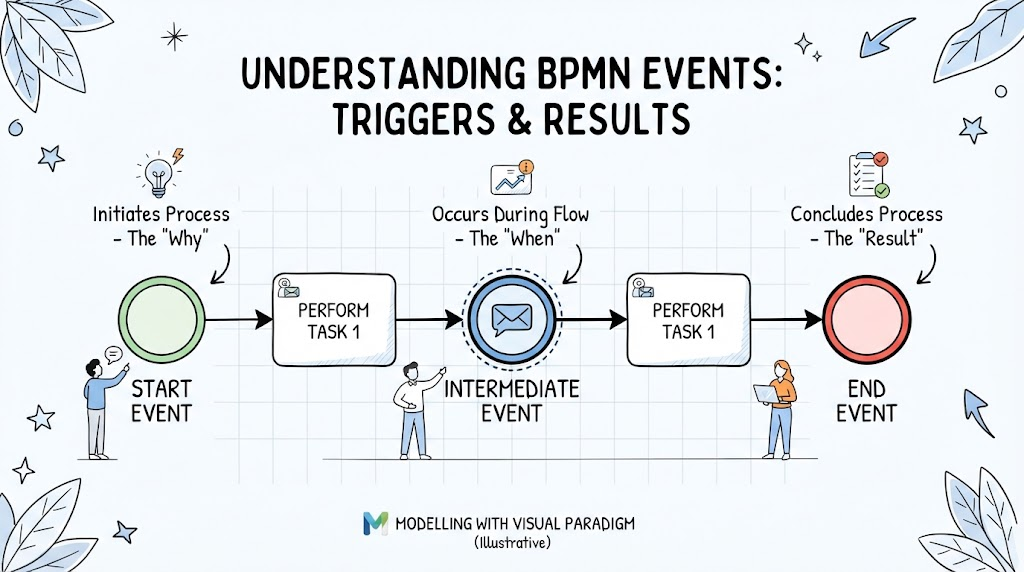
Understanding Events is critical for accurate process modeling. Without them, a diagram is merely a list of to-dos rather than a representation of real-world business logic. This guide explores the three fundamental types of Events—Start, Intermediate, and End—and demonstrates how to effectively model them using Visual Paradigm, a leading tool for BPMN design.
Key Concepts: The Anatomy of an Event
As illustrated in the foundational concepts of BPMN, all Events share a common geometric shape: the Circle. However, the nuance lies in the boundary of that circle. The type of border determines the event’s role in the process lifecycle.
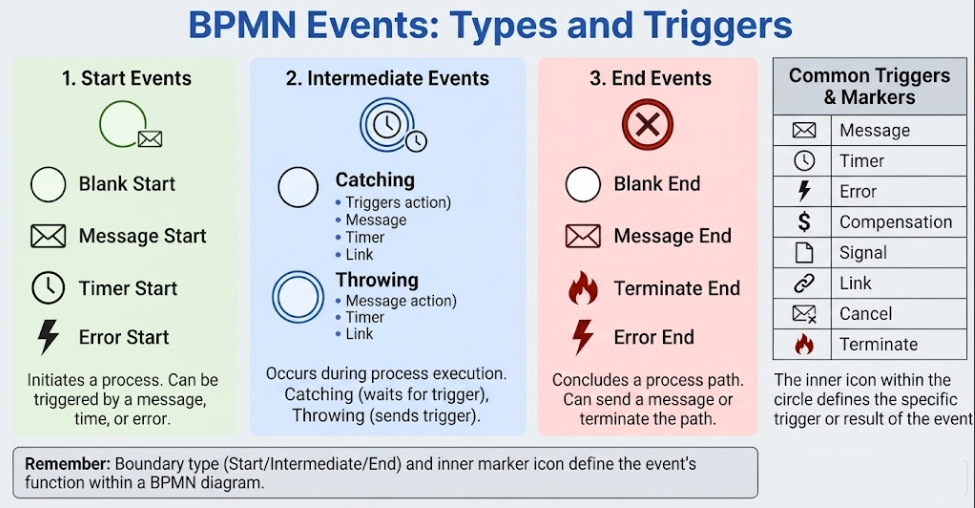
1. Start Events (The Trigger)
-
Visual: A circle with a thin/single outline.
-
Function: Represents the initiation of a process. It captures the trigger that sets the flow in motion.
-
Behavior: Start events generally do not have an incoming sequence flow (except for specific sub-process scenarios). They only have outgoing flows.
-
Common Types: Message Start (receiving an email/order), Timer Start (scheduled run), Signal Start.
2. Intermediate Events (The Interruption or Wait)
-
Visual: A circle with a double outline.
-
Function: Occurs somewhere between the start and end of a process. It represents a waiting state, a delay, or an interruption.
-
Behavior: These can be “Throwing” (triggering something, like sending a message) or “Catching” (waiting for something, like a timer expiring).
-
Placement: They can sit on the main flow (Sequence Flow) or attached to the boundary of a Task (Boundary Events) to handle exceptions or timeouts.
3. End Events (The Result)
-
Visual: A circle with a thick/bold outline.
-
Function: Signifies the completion of a process path.
-
Behavior: End events usually do not have outgoing sequence flows. They indicate that a specific result has been achieved (e.g., “Order Fulfilled,” “Payment Failed”).
-
Multiple Ends: A process can have multiple End Events representing different outcomes (happy paths vs. error paths).
Tooling Guide: Modeling Events in Visual Paradigm
Visual Paradigm provides a robust, drag-and-drop interface specifically designed for BPMN 2.0 standards. Here is how to apply the concepts above within the software.
Step 1: Accessing the Palette
-
Open Visual Paradigm and create a new BPMN Diagram.
-
Locate the Shape Repository (usually on the left or right sidebar).
-
Expand the Events category. You will see icons corresponding to the thin, double, and thick circles described in the theory.
Step 2: Creating a Start Event
-
Action: Drag a Start Event shape onto the canvas.
-
Customization: Right-click the shape > Open Specification. Here you can define the specific trigger. For example, change the icon inside the circle to a “Clock” to make it a Timer Start Event, or an “Envelope” for a Message Start Event.
-
VP Tip: Use the “Resource Catalog” (the little arrow that appears when you hover over the shape) to quickly drag out a Sequence Flow to the next task.
Step 3: Handling Intermediate Events
-
On the Flow: Drag an Intermediate Catch Event onto a sequence line. Visual Paradigm will automatically break the line and insert the event. This is perfect for modeling “Wait for Approval.”
-
Boundary Events: To model an exception (e.g., “If approval takes more than 3 days, escalate”), drag a Timer Boundary Event directly onto the edge of an existing Task shape. VP will snap it to the border, visually indicating it interrupts or runs parallel to that specific task.
Step 4: Defining End Events
-
Action: Drag an End Event to the termination point of your flow.
-
Differentiation: If your process has a “Success” path and a “Failure” path, use two different End Events. Change the icon inside one to a “Checkmark” (Terminate/Success) and the other to a “Lightning Bolt” or “X” (Error). This visual distinction helps stakeholders immediately understand process outcomes.
Practical Examples
To solidify understanding, here are two scenarios applying these concepts:
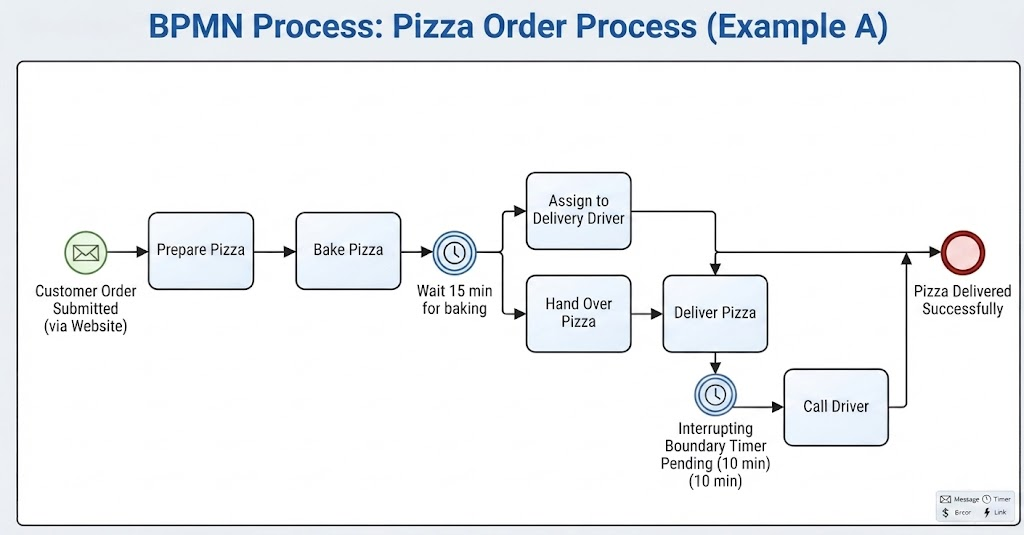
Example A: The Pizza Order Process
-
Start Event (Thin Circle): Message Start. Triggered when a customer submits an order via the website.
-
Intermediate Event (Double Circle): Timer Catch. Placed after “Bake Pizza.” Represents “Wait 15 minutes for baking.”
-
Boundary Event (Double Circle on Task): Attached to the “Delivery Driver” task. If the driver doesn’t confirm pickup in 10 minutes (Timer), the flow diverts to “Call Driver.”
-
End Event (Thick Circle): None End. Simply marks that the pizza has been delivered.
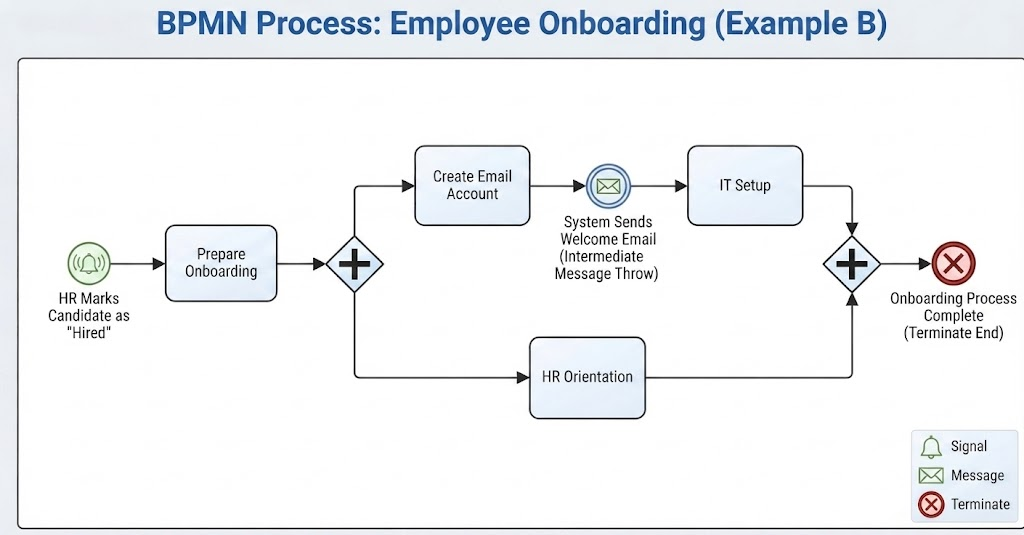
Example B: Employee Onboarding
-
Start Event: Signal Start. Triggered when HR marks a candidate as “Hired” in the system.
-
Intermediate Event: Message Throw. After “Create Email Account,” the system sends a welcome email (the event throws the message).
-
End Event: Terminate End. Once “IT Setup” and “HR Orientation” are both complete, the process terminates.
Conclusion
Events are the heartbeat of any BPMN diagram. While Tasks describe the work, Events describe the reality of the business environment—the triggers, the delays, and the conclusions. By mastering the distinction between the thin, double, and thick circles, and leveraging tools like Visual Paradigm to implement them correctly, you move from drawing simple flowcharts to engineering precise, executable business models. Remember: if something happens to the process, it’s likely an Event.