


Introduction
Business Process Model and Notation (BPMN) is the gold standard for visualizing business processes, and at the heart of any dynamic process lies the concept of Events. While Start and End Events bookend a process, Intermediate Events are the critical checkpoints that occur during execution. They represent something that happens while the process is running—waiting for a message, hitting a time limit, encountering an error, or triggering a compensation action.
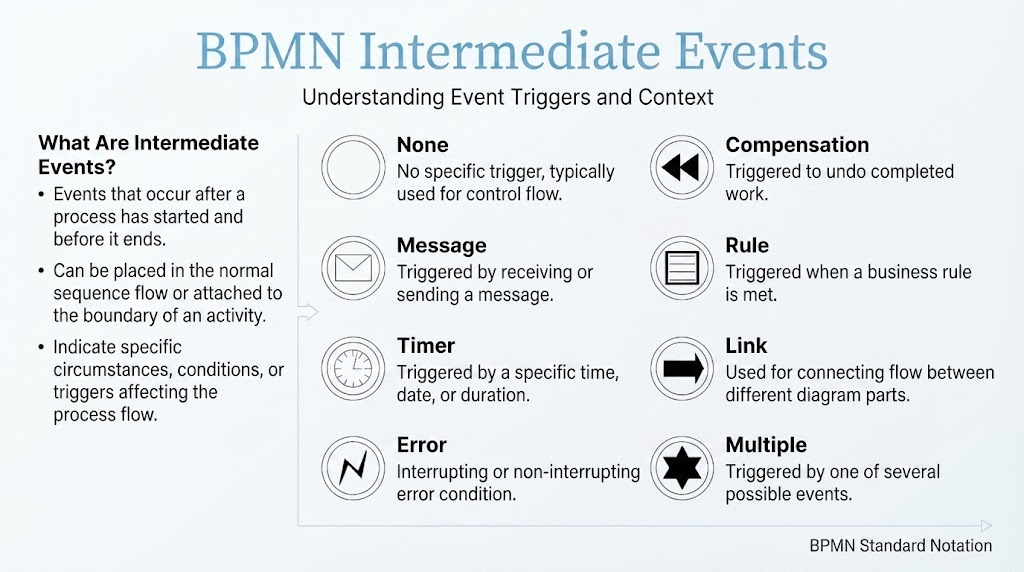
Understanding Intermediate Events is essential for creating accurate, executable, and resilient process models. This guide explores the different types of Intermediate Events, their triggers, placement options, and practical applications in real-world business scenarios. Whether you’re modeling simple workflows or complex enterprise processes, mastering these events will elevate your BPMN diagrams from static flowcharts to dynamic process blueprints.
Key Concepts
What Are Intermediate Events?
Intermediate Events are BPMN elements that occur after a process has started and before it ends. They serve as markers for specific circumstances or conditions that affect the flow of the process. Unlike tasks (which represent work being done), events represent something happening that the process must respond to.
Two Placement Options
-
In the Normal Flow: The event sits directly on the sequence flow, meaning the process must wait for or react to this event before proceeding.
-
Attached to Activity Boundaries: The event is connected to the edge of a task or subprocess, representing an exception or alternative path that can interrupt or follow the activity.
The Double-Lined Circle Convention
All Intermediate Events share a common visual trait: a double-lined circle. Inside this circle, an icon indicates the specific trigger type. If there’s no icon, it’s a “None” event.
Event Types & Triggers: Detailed Breakdown
1. None Intermediate Event
-
Symbol: Standard double-lined empty circle (no icon)
-
Trigger: No specific trigger; used for generic purposes
-
Use Case: Often used as a placeholder or for linking flows without specifying a particular condition. Rarely used in isolation but can appear in certain modeling patterns.
Example: In a simplified approval workflow, a None event might mark a transition point between two subprocesses where no specific condition needs to be modeled.
2. Message Intermediate Event
-
Symbol: Envelope icon inside the double circle
-
Trigger: Receipt or sending of a message
-
Use Case: Waiting for external communication or sending notifications
Examples:
-
Catching (Receiving): A customer service process waits for a customer’s reply email before proceeding to resolution.
-
Throwing (Sending): After order fulfillment, the system sends a shipping confirmation message to the customer.
Best Practice: Use Message events when interaction with external participants (customers, partners, other systems) is involved.
3. Timer Intermediate Event
-
Symbol: Clock icon inside the double circle
-
Trigger: Passage of time or reaching a specific date/time
-
Use Case: Delays, deadlines, reminders, or periodic actions
Examples:
-
Delay: Wait 48 hours before sending a follow-up reminder if no response is received.
-
Deadline: Escalate a support ticket if not resolved within 24 hours.
-
Cycle: Generate monthly reports on the first day of each month.
Timer Expressions: Can be defined as:
-
Relative time (e.g., “PT2H” for 2 hours)
-
Absolute time (e.g., “2026-09-15T09:00:00”)
-
Cyclic patterns (e.g., every Monday at 9 AM)
4. Error Intermediate Event
-
Symbol: Lightning bolt icon inside the double circle
-
Trigger: An error condition occurs
-
Use Case: Exception handling within a process
Important Distinction: Error events are typically used with subprocesses. When attached to the boundary of a subprocess, they catch errors thrown within that subprocess and redirect the flow to an error-handling path.
Example: In a payment processing subprocess, if the payment gateway returns an error, the Error event catches it and routes the process to a “Retry Payment” or “Notify Customer” task instead of continuing normally.
Note: Error events cannot be used in the normal flow—they must be attached to activity boundaries.
5. Compensation Intermediate Event
-
Symbol: Rewind/fast-backward triangles inside the double circle
-
Trigger: Need to undo or compensate for previously completed work
-
Use Case: Rollback actions, refunds, cancellations
How It Works: Compensation events are triggered when a process needs to reverse actions that were already completed. They invoke Compensation Handlers—separate subprocesses designed to undo specific tasks.
Example: In a travel booking process:
-
Flight is booked → Hotel is booked → Car rental is booked
-
If the customer cancels after all three are confirmed, a Compensation event triggers handlers to:
-
Cancel the car rental
-
Cancel the hotel
-
Cancel the flight
-
Key Rule: Compensation events must be attached to activities that have associated compensation handlers.
6. Rule Intermediate Event
-
Symbol: Document/table icon inside the double circle
-
Trigger: Evaluation of a business rule or condition
-
Use Case: Decision points based on complex logic or data evaluation
Example: In a loan approval process, a Rule event evaluates the applicant’s credit score, income, and debt-to-income ratio against predefined business rules. Depending on the outcome, the process branches to “Approve,” “Request More Info,” or “Reject.”
Advantage: Keeps complex decision logic separate from the main flow, making diagrams cleaner and rules easier to maintain.
7. Link Intermediate Event
-
Symbol: Arrow pointing right inside the double circle
-
Trigger: Jump to another part of the same process diagram
-
Use Case: Connecting distant parts of a large diagram without long, confusing sequence flows
How It Works: Link events come in pairs:
-
Link Throw (source): Marks where the flow jumps from
-
Link Catch (target): Marks where the flow continues
Example: In a complex procurement process with multiple approval levels, a Link event can jump from the end of “Level 1 Approval” directly to “Level 2 Approval” without drawing a line across the entire diagram.
Best Practice: Use sparingly and label clearly to avoid confusion. Overuse can make processes hard to follow.
8. Multiple Intermediate Event
-
Symbol: Star-like shape (asterisk) inside the double circle
-
Trigger: One of several possible triggers (configured at runtime)
-
Use Case: Flexible waiting for one of many conditions
Example: A customer onboarding process waits for either:
-
A signed contract (Message event)
-
Payment confirmation (Message event)
-
Manual approval by manager (Signal event)
The first trigger to occur activates the process continuation.
Configuration: The specific triggers are defined in the process engine’s configuration, not visible in the diagram itself.
Practical Examples: Putting It All Together
Example 1: Order Fulfillment Process
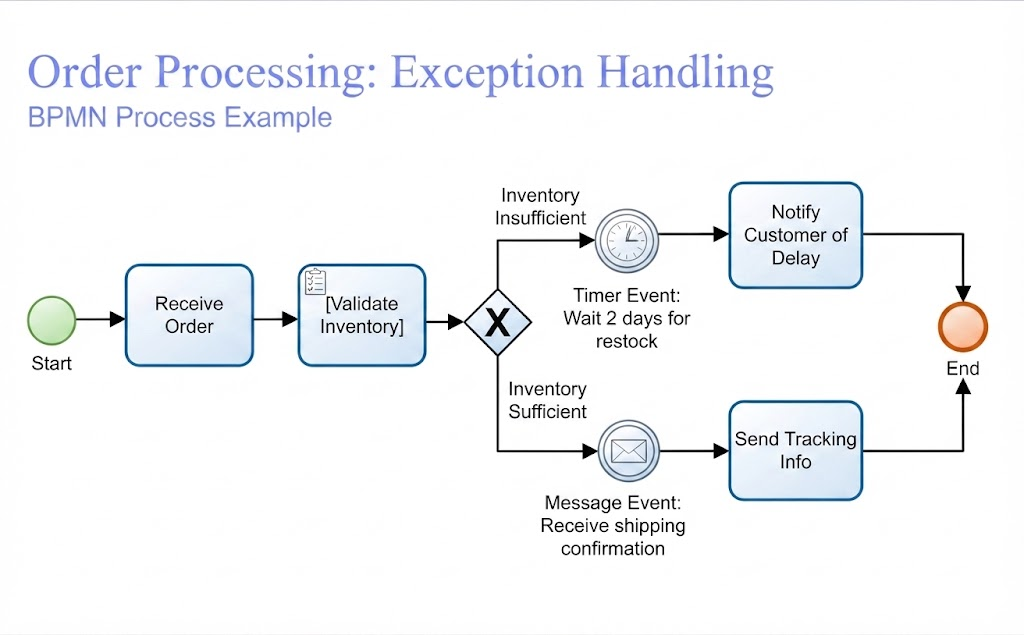
Events Used:
-
Timer: Waits for inventory restock
-
Message: Receives shipping confirmation from logistics partner
Example 2: Loan Application with Error Handling
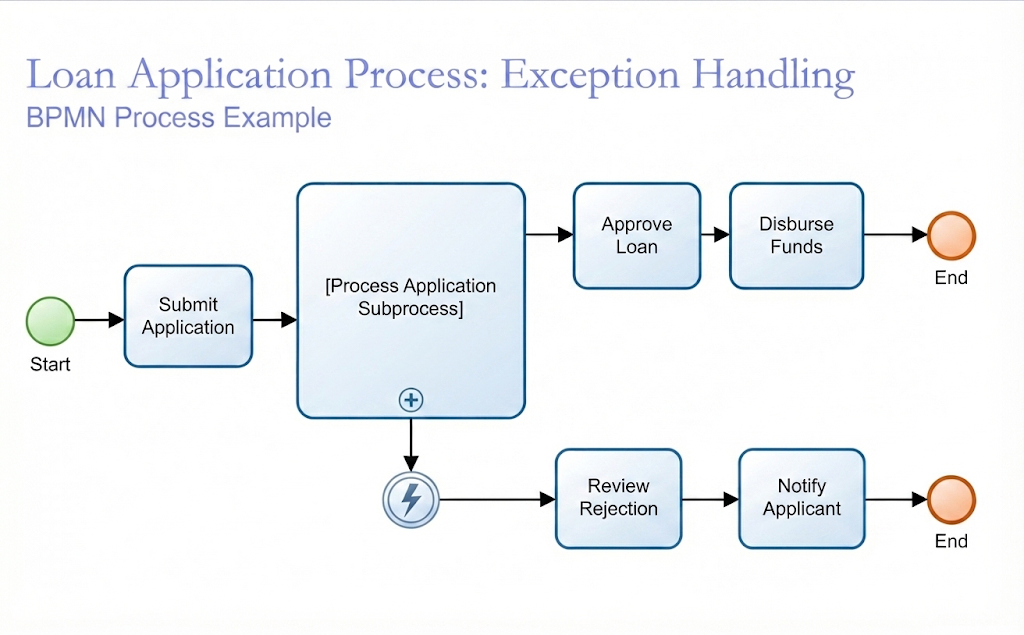
Events Used:
-
Error: Catches validation failures or system errors during processing
Example 3: Travel Booking with Compensation
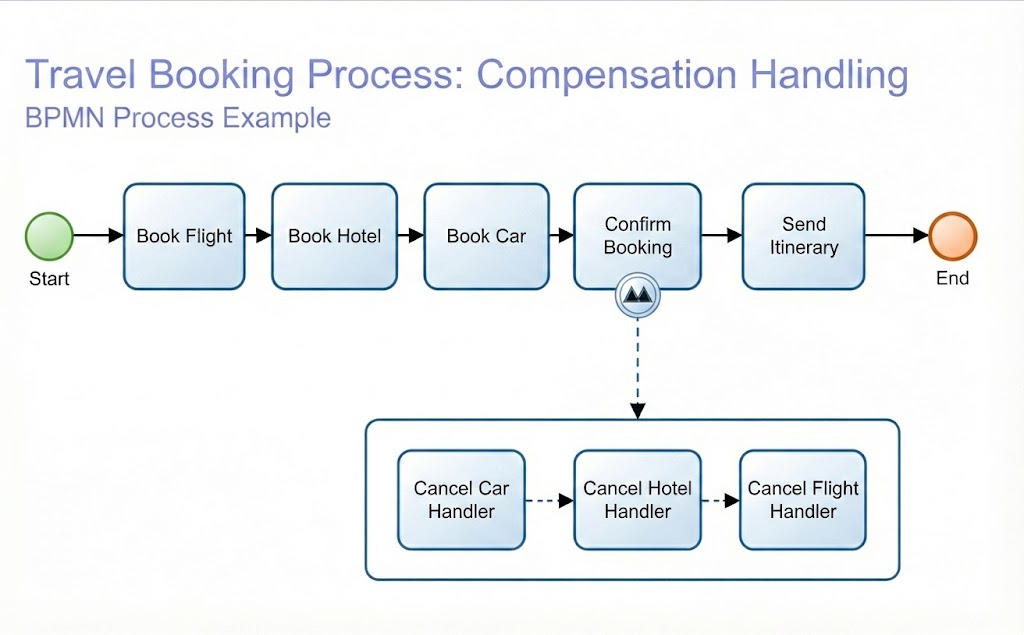
Events Used:
-
Compensation: Triggers rollback of all bookings if customer cancels
Example 4: Customer Support Escalation
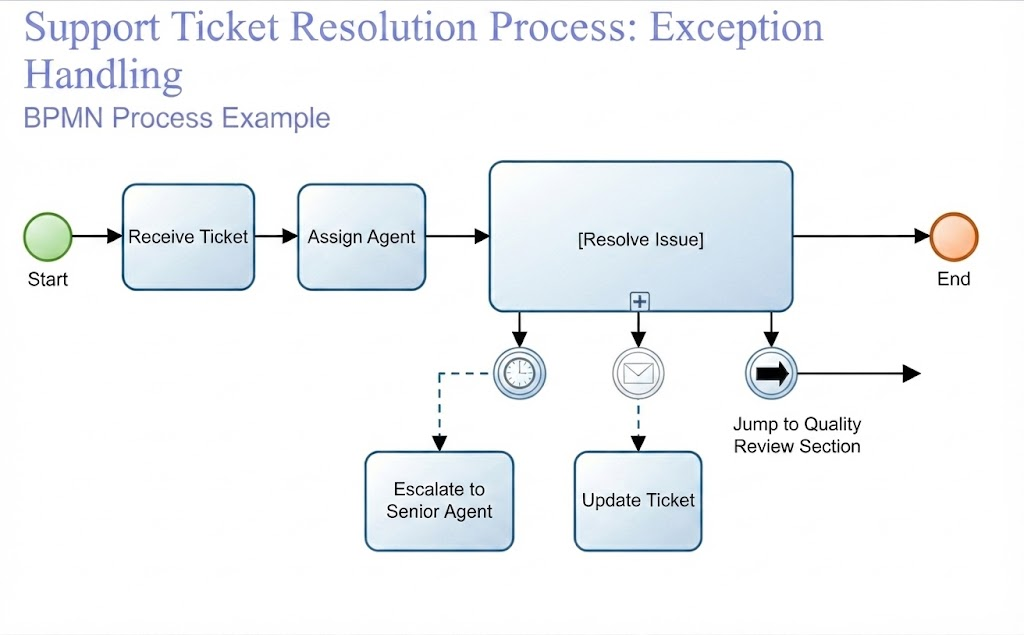
Events Used:
-
Timer: Enforces SLA deadlines
-
Message: Handles customer communication
-
Link: Connects to distant quality review section
Best Practices for Using Intermediate Events
-
Choose the Right Trigger: Match the event type to the actual business condition. Don’t use a Timer when you’re really waiting for a Message.
-
Limit Boundary Events: While powerful, too many boundary events can clutter diagrams. Use them only for genuine exceptions or interrupts.
-
Document Complex Logic: For Rule and Multiple events, document the specific conditions or triggers in accompanying documentation since they aren’t fully visible in the diagram.
-
Use Link Events Sparingly: They improve readability in large diagrams but can confuse readers if overused. Always label them clearly.
-
Test Compensation Logic: Compensation handlers must be thoroughly tested to ensure they properly reverse actions without causing data inconsistencies.
-
Consider Executability: If your BPMN model will be executed by a process engine, ensure all events are properly configured with the correct expressions and parameters.
Common Mistakes to Avoid
❌ Using Error Events in Normal Flow: Error events must be attached to boundaries, not placed on sequence flows.
❌ Confusing Message and Signal Events: Messages are for communication with external participants; Signals are for internal process communication.
❌ Overusing None Events: If there’s a specific trigger, model it explicitly rather than using a None event.
❌ Ignoring Compensation Scope: Compensation only works for activities that have completed successfully and have defined compensation handlers.
❌ Unclear Timer Expressions: Always specify whether timers are relative (duration-based) or absolute (date/time-based).
Conclusion
Intermediate Events are the backbone of dynamic, responsive business processes. They allow your BPMN models to reflect real-world complexity—waiting for messages, respecting deadlines, handling errors gracefully, and reversing actions when necessary. By mastering the eight types of Intermediate Events (None, Message, Timer, Error, Compensation, Rule, Link, and Multiple), you gain the tools to model processes that are not just accurate on paper but executable in practice.
Remember:
-
Placement matters: Choose between normal flow and boundary attachment based on whether the event is part of the happy path or an exception.
-
Triggers define behavior: Each event type serves a distinct purpose—use them intentionally.
-
Clarity is key: Well-modeled events make processes easier to understand, maintain, and automate.
As you continue refining your BPMN skills, treat Intermediate Events not as optional decorations but as essential components that bring your process models to life. Whether you’re designing simple workflows or orchestrating complex enterprise systems, these events ensure your processes respond intelligently to the unpredictable nature of business.
Reference Articles: Visual Paradigm for UML and Use Case Modeling
Getting Started & Step-by-Step Tutorials
-
How to Create UML Use Case Diagram in Visual Paradigm: A complete walkthrough covering project setup, adding actors and use cases, defining system boundaries, and connecting elements with associations, include, and extend relationships .
-
Use Case Diagram Example: Build Your First App Model: A hands-on tutorial for creating a use case diagram for an e-commerce app, with practical tips on identifying actors and applying include/extend relationships .
-
Practical 2: Hands-on Use Case Modeling: A practical guide covering both manual diagram creation and AI-powered generation, plus documenting flow of events and scenarios .
AI-Powered Features & Advanced Workflows
-
2.3 Visualizing the Model: Explores Visual Paradigm’s AI-powered automatic generation of polished UML Use Case Diagrams from candidate use case tables, with multiple practical examples .
-
Module 3: Functional Modeling and Use Case Elaboration: Covers AI-powered use case elaboration, including narrative-to-activity diagram transformation and intelligent relationship suggestions .
-
What is a Base Use Case Diagram Analyzer and How Can It Help You?: Introduces an AI tool that analyzes PlantUML use case diagrams to automatically generate comprehensive reports, scenarios, and test cases .
Conceptual Foundations & Best Practices
-
2.1 Identification of Actors and Use Cases: A guide on brainstorming actors and high-level use cases with an actor-centric, goal-oriented approach, supported by AI-assisted candidate suggestions .
-
3. Use Case Refinement and Relationships: Explains how to refine initial diagrams by intelligently applying
«include»and«extend»relationships using Visual Paradigm’s AI Refinement Tool, with practical examples .
Project Setup, Documentation & Organization
-
UML Modeling Setup: Best Practices for Success: Best practices for structuring Visual Paradigm projects, including package organization, naming conventions, and versioning strategies for long-term maintainability .
-
8.2 Software Design Document (SDD) Generation: Details how to automatically generate professional Software Design Documents (SDD) in PDF or Markdown, compiling use case models, diagrams, and test cases