


Introduction
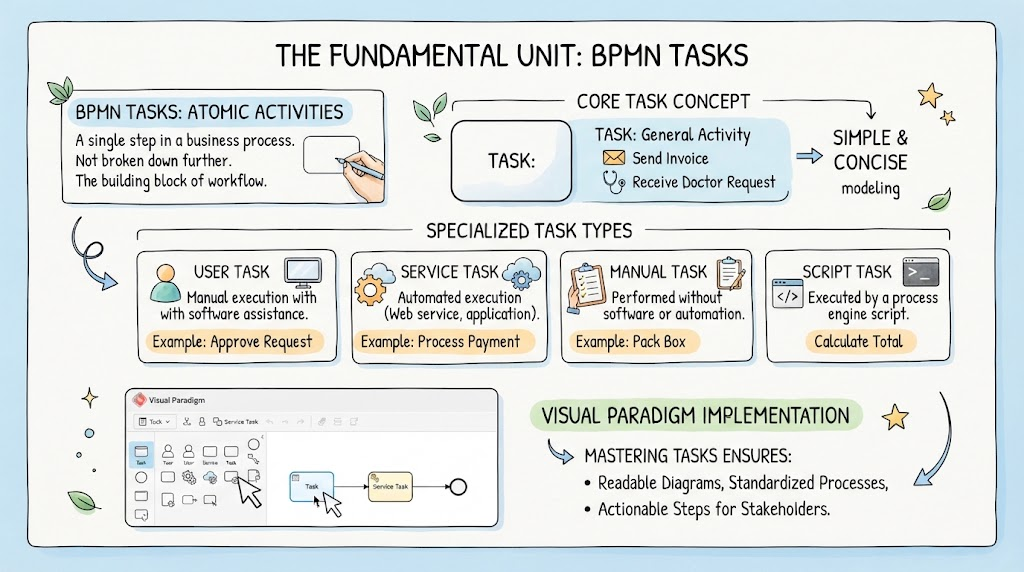
In the world of Business Process Model and Notation (BPMN), clarity is king. While processes can be complex webs of decisions and events, the fundamental unit of work remains the Task. As defined in standard BPMN theory, a Task represents an atomic activity—a single step that is not broken down into further detail within the current model.
Whether you are mapping out a simple “Send Invoice” workflow or a complex medical intake procedure involving a “Receive Doctor Request,” understanding how to correctly model tasks is essential. This guide explores the core concepts of BPMN Tasks, their specialized variations, and how to effectively implement them using Visual Paradigm, a leading tool for business process modeling. By mastering these elements, you ensure your diagrams remain readable, standardized, and actionable for stakeholders.
Key Concepts: The Anatomy of a BPMN Task
Based on the foundational principles of BPMN, here are the critical characteristics every modeler must understand:
1. The Atomic Nature of a Task
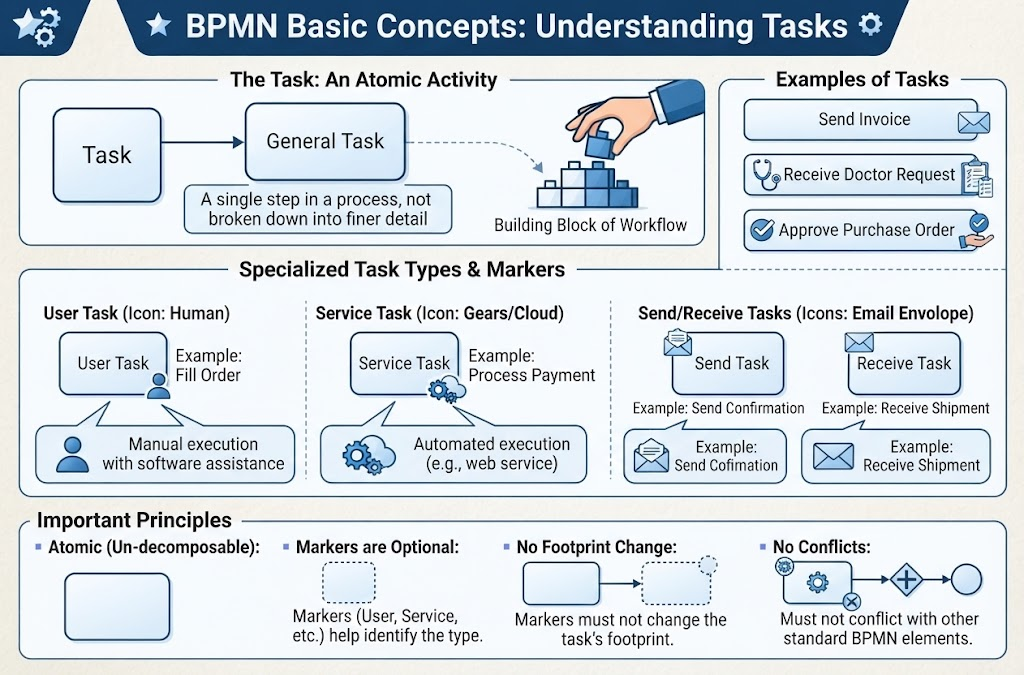
A Task is the smallest unit of work in a process diagram. It is “atomic” because, at the level of abstraction you are currently working, it cannot be divided further.
-
When to use it: Use a Task when the work does not require a sub-process or a finer level of detail.
-
Visual Representation: In standard BPMN, a Task is represented by a rectangle with rounded corners.
2. Specialized Task Types
While the generic “Task” shape is versatile, BPMN offers specialized icons to communicate how the work is performed without cluttering the diagram with text. Common types include:
-
Send Task: An automated activity that sends a message to another participant (e.g., “Send Invoice”).
-
Receive Task: An automated activity that waits for a message to arrive (e.g., “Receive Doctor Request”).
-
User Task: A task performed by a human actor with the assistance of a software application (e.g., “Fill Order”).
-
Service Task: A task performed automatically by a system or web service.
-
Script Task: A task where the logic is executed by a script engine.
3. Markers and Icons
To provide additional context without changing the shape of the element, BPMN uses markers (small icons) placed inside the Task rectangle.
-
Loop Marker: Indicates the task repeats (a circular arrow).
-
Multi-Instance Marker: Indicates the task runs in parallel or sequentially for multiple instances (three vertical lines).
-
Compensation Marker: Indicates the task is used to undo changes if a failure occurs (a pair of arrows).
-
Rule: As noted in standard definitions, markers must never change the footprint (size/shape) of the Task or conflict with other standard elements. They are purely additive information.
Tooling: Implementing Tasks in Visual Paradigm
Visual Paradigm (VP) provides a robust environment for creating compliant BPMN diagrams. Here is how to apply the concepts above using the tool:
Step 1: Creating the Basic Task
-
Open your BPMN Diagram in Visual Paradigm.
-
Navigate to the BPMN Shape Repository (usually on the left sidebar).
-
Drag and drop the Task shape onto the canvas.
-
Double-click the shape to rename it (e.g., “Send Invoice”).
Step 2: Converting to Specialized Tasks
Instead of drawing different shapes manually, VP allows you to toggle task types instantly:
-
Select your generic Task shape.
-
Look for the Resource Catalog icon (the small arrow/resource icon) that appears at the top-right corner of the selected shape.
-
Click it and select Change Type.
-
Choose the specific type required, such as Send Task, Receive Task, or User Task.
-
Note: If you select “User Task,” VP will automatically add the little “user/person” icon to the top-left of the rectangle, matching the “Fill Order” example in your reference image.
-
Step 3: Adding Markers
To indicate loops or multi-instances:
-
Select the Task.
-
Open the Format Panel (usually on the right side).
-
Under the BPMN tab or Shape Properties, look for checkboxes labeled Loop, Multi-instance, or Compensation.
-
Checking these boxes will instantly render the correct standard marker inside the task boundary without you needing to draw it manually.
Example Scenario: Order Fulfillment
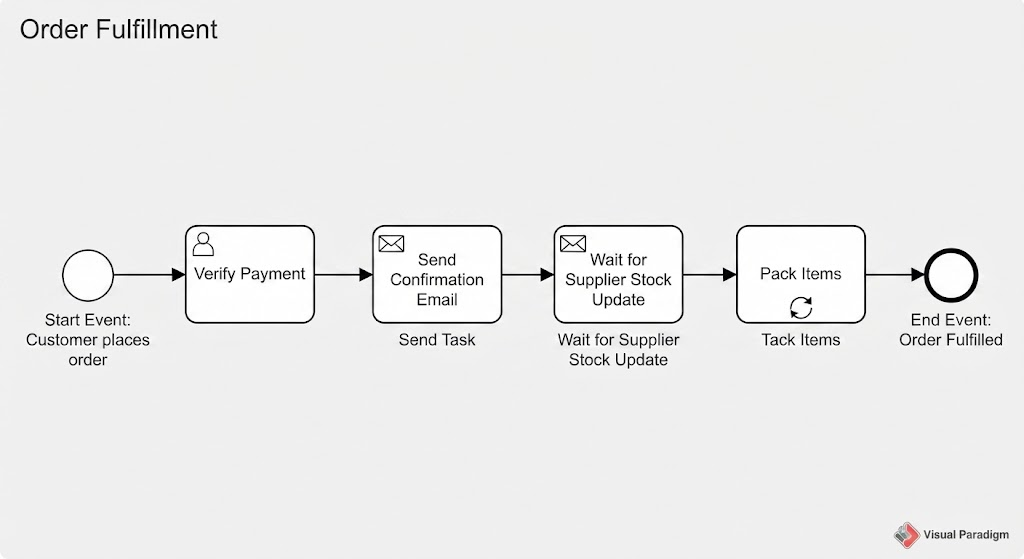
Imagine modeling an e-commerce flow in Visual Paradigm:
-
Start Event: Customer places order.
-
User Task: “Verify Payment” (Add User icon via Resource Catalog).
-
Send Task: “Send Confirmation Email” (Change type to Send Task; this implies an automated system action).
-
Receive Task: “Wait for Supplier Stock Update” (Change type to Receive Task; the process pauses here until a message arrives).
-
Task (with Loop Marker): “Pack Items” (If the order has multiple items, add the Loop marker to show this happens repeatedly).
Conclusion
The BPMN Task may appear simple—a rounded rectangle—but it is the building block of effective process communication. By adhering to the rule of atomicity and utilizing specialized types like Send, Receive, and User tasks, you reduce ambiguity in your diagrams.
Tools like Visual Paradigm streamline this adherence to standards, allowing you to focus on the logic of the business process rather than the mechanics of drawing. Remember, a well-modeled task tells the viewer exactly who is doing the work, what triggers it, and if it repeats, all without breaking the visual flow of the process. Master these basics, and your process models will serve as powerful tools for analysis and automation.