


Introduction
In Business Process Model and Notation (BPMN), clarity is king. As business workflows grow in complexity, drawing every single step on a single canvas results in a “spaghetti diagram” that is impossible to read or maintain. The solution to this chaos is hierarchical process development.
At the heart of hierarchy in BPMN is the Sub-Process. A Sub-Process is a compound activity—a container that groups related tasks into a single logical unit. It allows modelers to hide complexity when discussing high-level strategy while retaining the ability to drill down into granular details when necessary. Whether you are mapping a simple approval workflow or a complex financial transaction system, understanding how to utilize Collapsed and Expanded Sub-Processes is essential for creating professional, scalable diagrams.
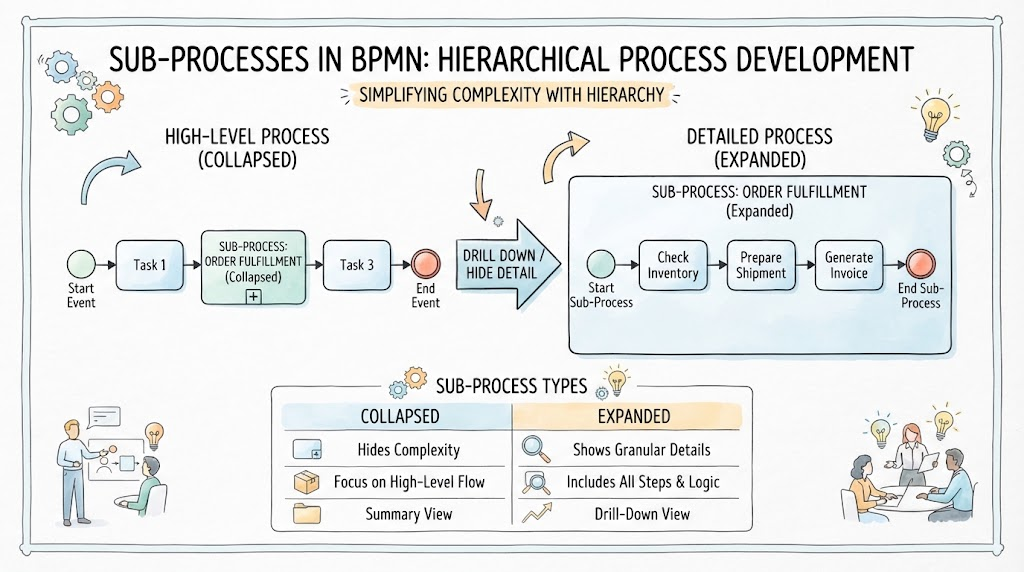
This guide explores the mechanics of Sub-Processes, distinguishes between their visual states, and provides a practical walkthrough using Visual Paradigm, a leading tool for BPMN modeling.
Key Concepts
1. The Compound Activity
A Sub-Process is not just a task; it is a “process within a process.” It acts as a boundary. Inside this boundary, you can have start events, end events, gateways, and other activities that function independently of the main flow, yet contribute to the parent process’s goal.
2. Collapsed vs. Expanded Views
BPMN offers two ways to visualize a Sub-Process, depending on the audience and the level of detail required:
-
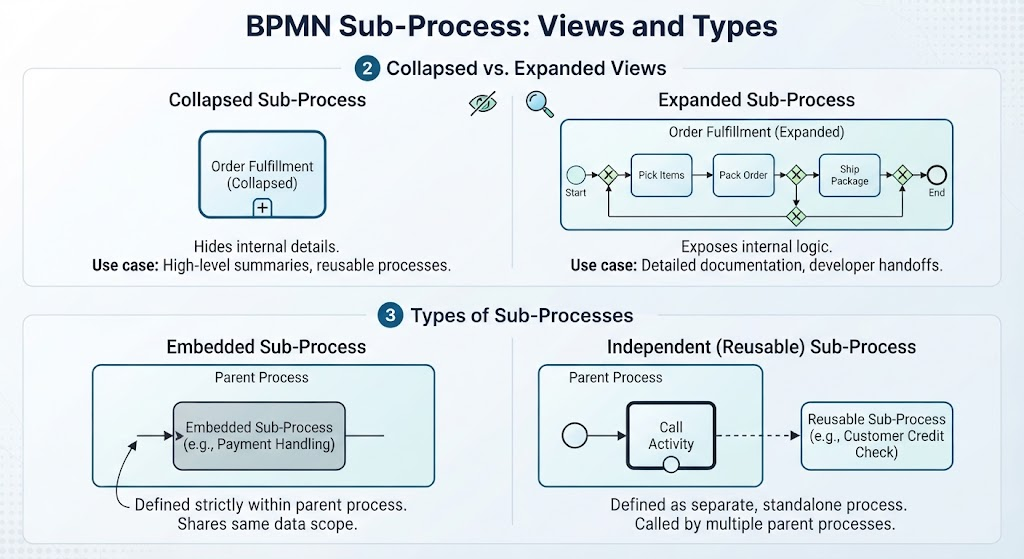
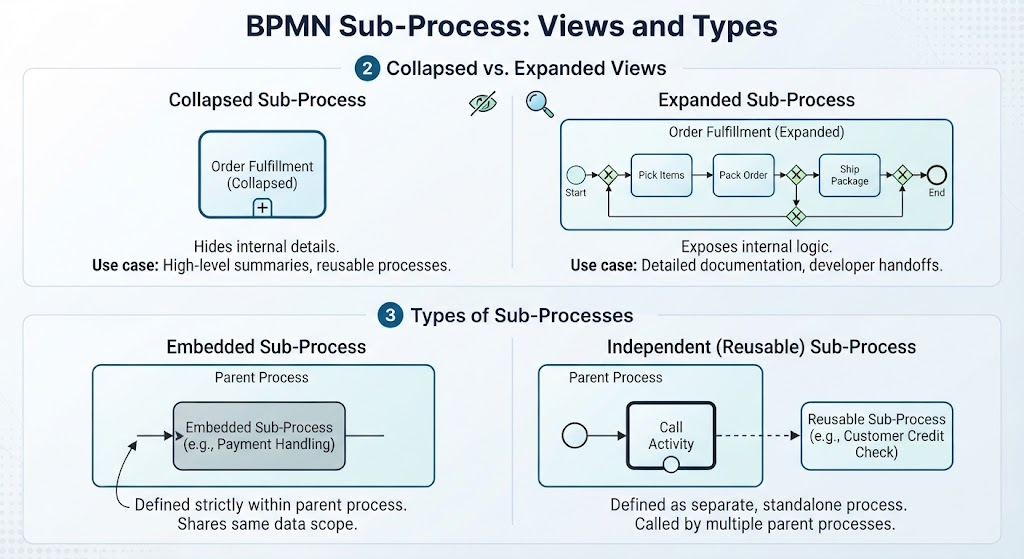
Collapsed Sub-Process:
-
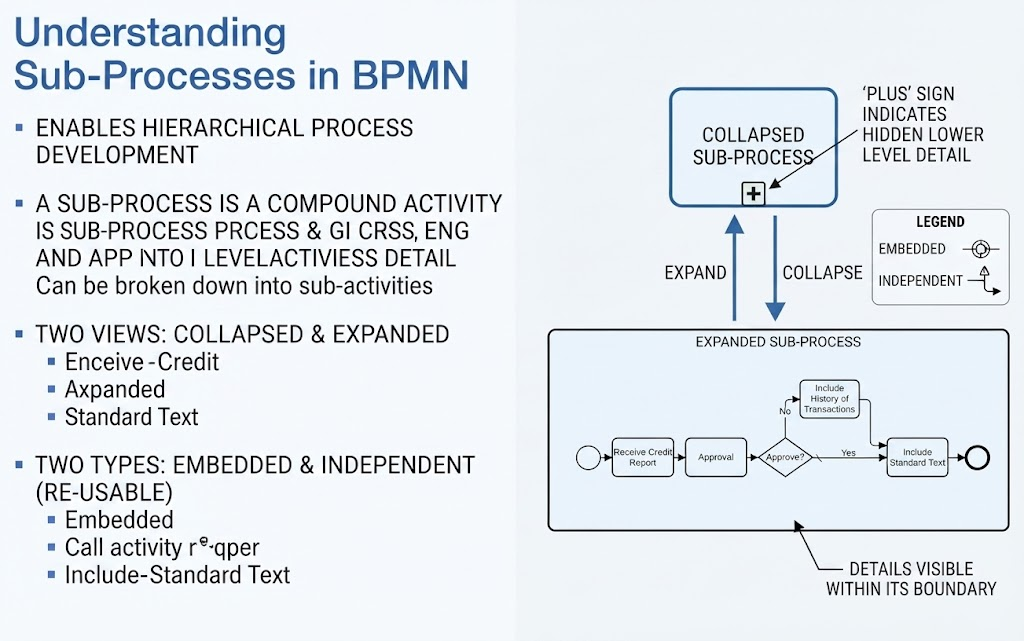
Visual Indicator: A rounded rectangle with a small “plus” (+) sign at the bottom center.
-
Function: This hides the internal details. It tells the viewer, “There is more happening here, but we don’t need to see it right now.”
-
Use Case: High-level executive summaries or when the sub-process is reused in multiple places.
-
-
Expanded Sub-Process:
-
Visual Indicator: A large rounded rectangle that physically contains the internal flow elements (tasks, gateways, flows). There is no “plus” sign.
-
Function: This exposes the internal logic. It shows exactly how the compound activity is achieved.
-
Use Case: Detailed technical documentation, developer handoffs, or process optimization analysis.
-
3. Types of Sub-Processes
While the visual representation (collapsed/expanded) handles the view, the underlying architecture defines the type:
-
Embedded Sub-Process: Defined strictly within the parent process. It cannot be used by other processes. It shares the same data scope as the parent.
-
Independent (Reusable) Sub-Process: Defined as a separate, standalone process. It can be called by multiple parent processes (often represented by an empty circle marker rather than a plus sign in strict BPMN 2.0, though tools often group them conceptually).
Practical Example: The Credit Approval Workflow
Let’s apply these concepts to the scenario hinted at in your source image: Processing a Credit Report.
The Scenario:
A bank receives a credit report. Before issuing a final decision, they must run an internal check. If the history is clean, they include standard text; if not, they flag the history of transactions.
Level 1: The High-Level View (Collapsed)
When presenting to the Branch Manager, you show the main flow. You do not want to clutter the diagram with the specific logic of the “Check History” phase.
-
Flow: Start $\rightarrow$ Receive Credit Report $\rightarrow$ [Approval Check (+)] $\rightarrow$ End.
-
Why: The manager only cares that an “Approval Check” happens, not the specific algorithm used inside it.
Level 2: The Detailed View (Expanded)
When training the Loan Officer or configuring the software, you expand the [Approval Check] box.
-
Inside the Box:
-
Task: Review Application
-
Gateway: Approve? (Decision Diamond)
-
Path Yes: Flow to Include Standard Text.
-
Path No: Flow to Include History of Transactions.
-
-
Both paths merge and exit the Sub-Process boundary.
-
Tooling Guide: Visual Paradigm
Visual Paradigm (VP) is an excellent tool for managing these hierarchies because it allows you to toggle views without redrawing diagrams. Here is how to implement Sub-Processes in VP:
Step 1: Creating the Sub-Process
-
Open your BPMN Diagram in Visual Paradigm.
-
From the BPMN Shape Palette, drag a Sub-Process shape onto the canvas.
-
By default, VP may create an Expanded view. To make it Collapsed:
-
Right-click the Sub-Process shape.
-
Select Presentation Options > Collapse Sub-process.
-
You will now see the distinctive (+) marker at the bottom.
-
Step 2: Defining Internal Logic (Drilling Down)
You do not need to manually draw the inside of a collapsed box on the same canvas.
-
Double-click the Collapsed Sub-Process (or right-click and select Open Specification / Navigate to Sub-process).
-
VP will open a new tab representing the internal view of that Sub-Process.
-
Here, you can drag and drop Tasks, Gateways, and Events just like a normal diagram.
-
Note: Any changes made here are automatically reflected if you later choose to “Expand” the shape on the parent diagram.
Step 3: Switching Between Embedded and Reusable
If you decide this “Credit Check” logic should be used in a different process (e.g., “Mortgage Application”):
-
In the Sub-Process specification window, look for the Type setting.
-
Change it from Embedded to Reusable.
-
VP will treat this as a global asset. You can now drag this specific Sub-Process from the Model Explorer into any other diagram in your project.
Step 4: Formatting for Clarity
-
Swimlanes: You can place a Sub-Process across multiple swimlanes if the internal tasks involve different departments (e.g., Sales and Finance).
-
Boundaries: Ensure your sequence flows enter and exit the Sub-Process boundary cleanly. Visual Paradigm provides “glue points” on the border of the Sub-Process shape to ensure lines snap correctly.
Conclusion
Sub-Processes are the building blocks of scalable business process modeling. They bridge the gap between high-level strategy and low-level execution. By mastering the distinction between Collapsed (for summary) and Expanded (for detail) views, you ensure your diagrams remain readable regardless of their complexity.
Using tools like Visual Paradigm streamlines this hierarchy, allowing you to manage Embedded and Independent processes efficiently. Remember: a good BPMN diagram doesn’t just show what happens; it organizes information so the viewer understands when and why it matters. Start collapsing your complex workflows today to reveal the clear structure underneath.